This entry is all about the Toolbar and Sidebar in Finder windows, but don’t worry—I won’t bore you a feature-by-feature description of every Toolbar and Sidebar feature. Instead, I’ve written a delightful little ditty about making the Sidebar and Toolbar work smarter, a tantalizing little tale I call:
Why the Hell Haven’t You Customized Your Toolbar and Sidebar???
I’m teaching a class on Mac basics at University of Texas Informal Classes and It freaks me out that not a single one of my students knew you could customize the Toolbar and Sidebar. And that’s a shame since they’re two powerful features that have been around since time immemorial and are common to all Finder windows in all versions of OS X.
If your Sidebar and Toolbar are still just as Apple shipped them, you’re about to see how to make them über-useful. And for those who’ve customized their Sidebar or Toolbar, let me show you a few of my favorite tricks for making them work smarter.
On Making Your Toolbar Work Smarter
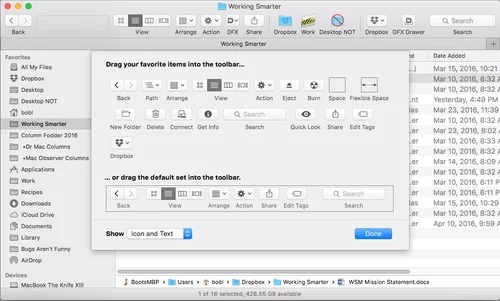
You probably know that in the Finder, you can choose View–>Customize Toolbar to add or remove items from the Toolbar. And, if you didn’t, you do now:
What you probably don’t know is that you can also add any folder or file to your Toolbar by holding down the Command key and dragging the item onto the Toolbar.
In the figure above, I’ve added the Dropbox, Work, and Desktop NOT folders to my Toolbar, making it easy for me to drag files or folders onto any of them or open ’em in their own tab with a single click.
The Command key is also the key (haha) to several other useful Toolbar tricks. For one, you may know that you can rearrange items on the toolbar as long as the Customize Toolbar sheet is open… But it’s often faster to just press Command and rearrange your Toolbar icons without involving the Customize Toolbar sheet.
The Command key is also the key (haha again) to removing items you don’t want in the Toolbar anymore. To get rid of an item in the Toolbar, press Command and drag the icon off the Toolbar; when you release the mouse button, the item will disappear with a satisfying “poof.” Or, you can invokie the Customize Toolbar sheet and drag them off without the Command key, but what fun is that?
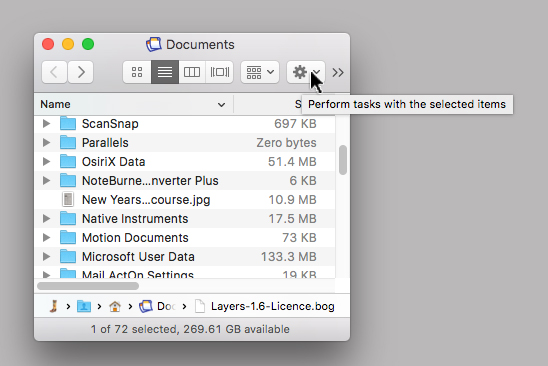
Here’s one final Toolbar tip before we move on: If you often forget what your Toolbar icons mean, choose Icon and Text from the pop-up Show menu in the lower left corner of the Customize Toolbar sheet. This will display the item’s name below its icon, as shown in the previous figure. Or, hover the pointer over any item in the Toolbar for a few seconds and its description appears as a tool tip (Perform tasks with the selected items in the figure below):
One last thing: If you try to drag a file or folder to the Toolbar and it won’t stick, chances are you’re trying to drag an alias. You can’t do that. Instead, find the original file by clicking on the alias and choosing File–>Show Original (or Command + R) and then dragging the original file onto the Toolbar.
On Making Your Sidebar Work Smarter
Many users underestimate the convenience of the Sidebar, never bothering to customize it to suit their needs. That’s a big mistake. Although Apple populates a stock Sidebar with some useful folders, if you want to make it really useful, you need to populate it with the folders you use most.
To add a folder to the sidebar (WSM e-book in this example), drag the folder onto the Sidebar. Make sure it’s positioned between two folders and you see a little line between the folders (as shown on the left in the figure below). When you release the mouse button, WSM e-book appears in the Sidebar between the two folders where the line was (as shown on the right in the figure below).
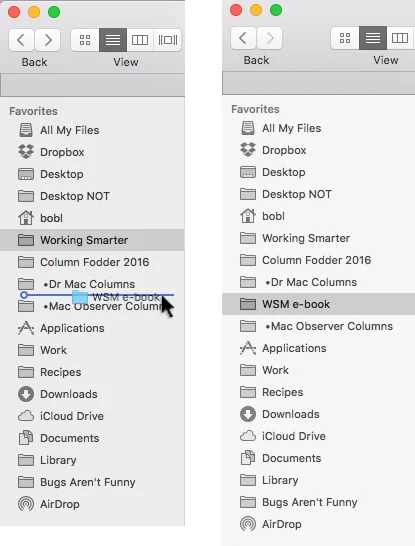
If you drag the folder onto another folder in the Sidebar (the Column Fodder folder in the figure below), instead of dragging it between two folders (Dr. Mac Columns and Mac Observer Columns in the figure above), you’ll move the WSM e-book folder into the Column Fodderfolder instead of adding it to the Sidebar.
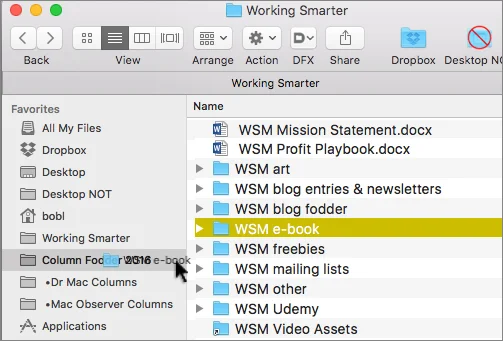
To remove a folder from your Sidebar, just drag it out of the Sidebar until you see a little X in a circle. When you do, release the mouse button and the folder disappears with a satisfying “poof.”
By the way, folders in the Sidebar are merely aliases to the actual folder—removing a folder from the Sidebar only removes the alias from the Sidebar—the folder itself remains in place and untouched.
The thing that makes the Sidebar so uniquely useful is that it appears in both Open and Save dialogs as well as Finder windows. Whatever appears in the Sidebar in the Finder, as shown on the left in the figure below, also appears in the Sidebar of Open and Save dialogs, as shown on the right.
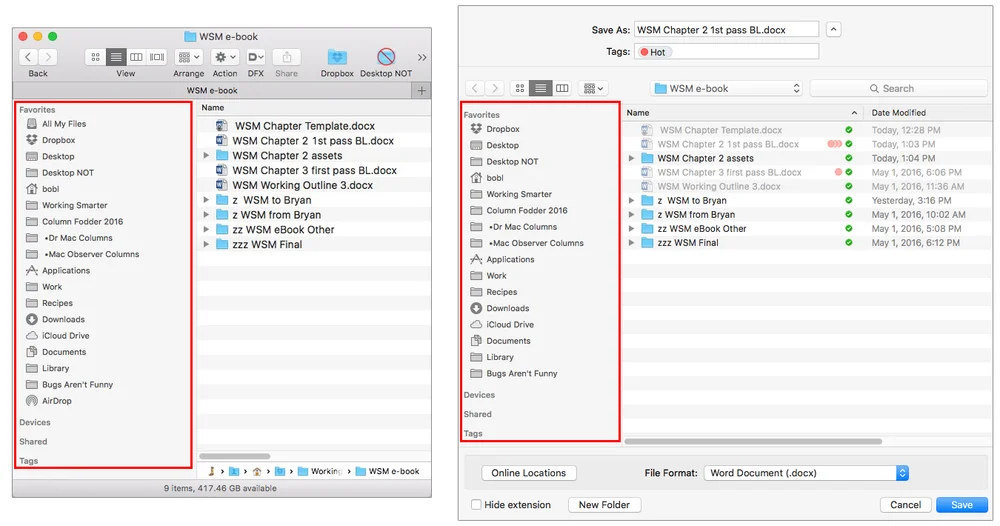
My Sidebar is always in a state of flux. For example, I add project folders (like Working Smarter) when I’m actively working on them, and remove them when that project is done. I also add folders I frequently save files into such as Column Fodder and Recipes folders.
The point is: There’s no reason not to add every folder you use regularly to the Sidebar.
Last but not least, sharp-eyed readers have surely noticed that I have several folders in both the Toolbar and the Sidebar. My answer to that is: Why not? I use those three folders more than the others; having them available in more than one place is convenient. There’s no penalty for having multiple aliases of a folder… So why wouldn’t I make it as easy as possible to access folders I use most?