Crucible is a recently developed app for MacOS that allows users to program 2MB SMC ROM SIMMs. The app was developed by Satanic Mac Club and One Geek Army, with most of the programming handled by One Geek Army. One Geek Army is known for developing DiskJockey, a popular disk image editor.
Beta Version 2.0 Released
Version 2.0 introduces new Split and Join modes, making the app useful beyond just SMC ROM SIMMs and enabling it to stand alone as a versatile tool. While our primary goal has always been to improve our products, we wanted to extend the app’s usability to scenarios outside of our hardware. This allows the software to remain valuable even for users who don’t own our products. Of course, it’s possible to use Crucible with products from other companies, but the icons, designs, and other assets remain our intellectual property. Images created using Crucible are limited to personal use by the user.
Crucible Mix Mode: A Step-by-Step Guide
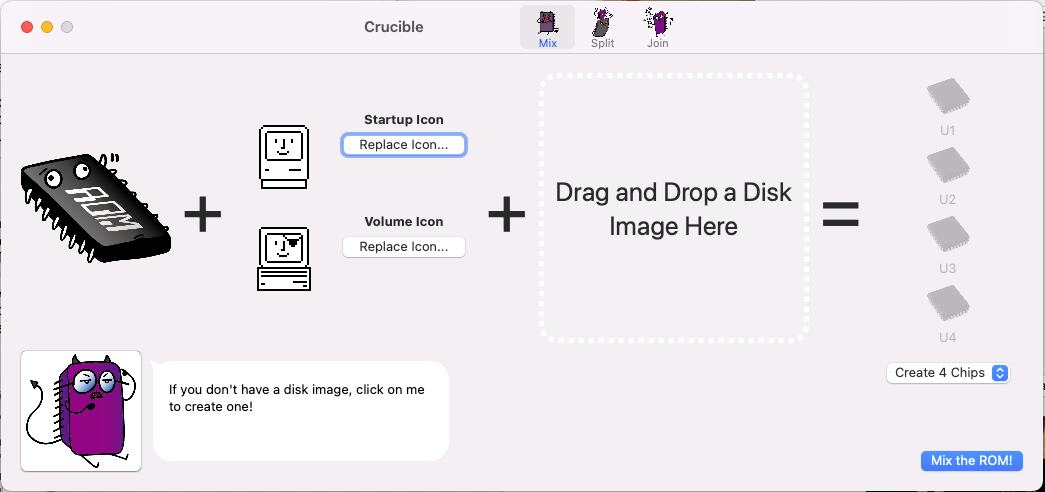
In Crucible’s Mix Mode, the workflow is straightforward. This mode is primarily used to generate ROMs for the SMC ROM SIMM products we offer, but it can also be used to create ROMs for any 2MB ROM SIMM from other manufacturers.
- Extracting the Disk Image
Begin by clicking the purple ROM Devil button in the lower-left corner to extract a disk image. You can choose from four types of disk images: System 6.0.7, 7.0.1, 7.1, or a blank disk. Older system images (like System 6.0.7) require less space, leaving more room for software. Note that booting with System 6.0.7 forces 24-bit mode even if you have plenty of memory installed, which means 32-bit clean features are unavailable. However, if you boot System 7 or later using SCSI or a floppy disk, the ROM itself remains 32-bit clean, enabling 32-bit mode. The extracted disk image can be opened with emulators like Mini vMac. You can customize it by adding software or extensions to the available space. - Customizing Disk and ROM Icons
Next, modify the icons for your boot disk and ROM disk. Mac icons consist of an icon image and an icon mask. The mask determines which parts of the icon are visible (black) and which are transparent (white). After selecting the icons, you can view and adjust them to your liking.
Our pre-made icons are free to use:
https://9b917908-9bcc-4794-acf9-af00c9274443.usrfiles.com/archives/9b9179_d527d1b189774513ba8ead6042b1deda.zip
- Setting the Image Split Mode
Decide how to split the image: you can choose from 4-way, 2-way, or no split modes. - Finalizing Your ROM Image
Once all edits are complete, drag and drop the disk image you edited in Mini vMac back into Crucible. The tool will then generate your ROM image.
For a detailed walkthrough, check out our YouTube videohttps://www.youtube.com/watch?v=o8I6Rb7NCW4&t=35s
or the recently released tutorial by Colin (aka: This Does Not Compute) on their channel!
https://www.youtube.com/watch?v=zc3sPoqOFG8&t=439s
Here’s how to create an icon
https://ameblo.jp/keroxiee1016/entry-12795487099.html?fbclid=IwAR3PQdRL_fihydDLdik3mChVQxWqELx2QfNT260kPKtn1UFEsI9hO0Bmdyk
Split Mode: A New Feature in Crucible V2
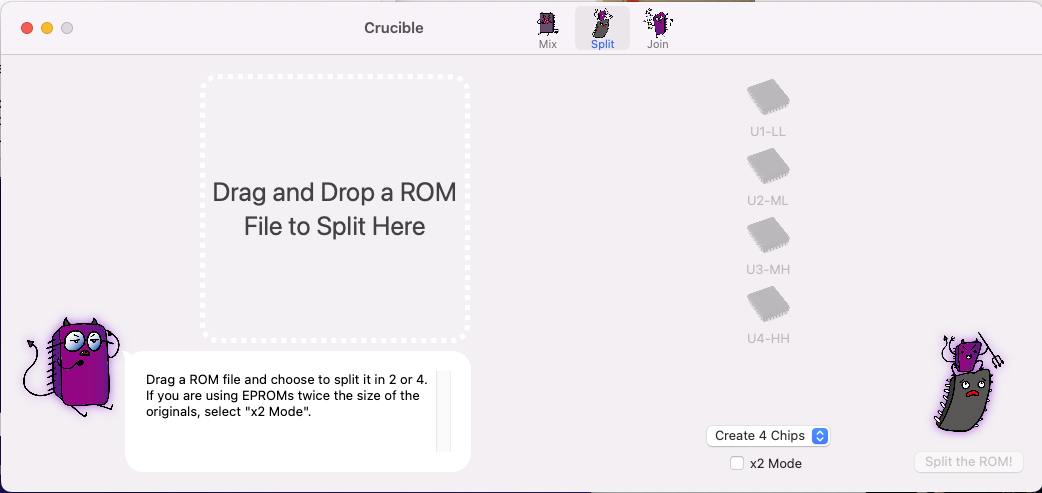
Split Mode is one of the new features introduced in Crucible V2. Vintage Mac ROMs are often not single files but are split into high and low sections or divided into four parts.
If your Mac displays a checkerboard pattern or similar issues, it could indicate a faulty ROM, poor socket connections, or a damaged EPROM chip. In the case of a faulty chip, you’ll need to replace it with a generic EPROM, flashed using a ROM programmer.
Most ROM images available online are single-image files designed for use in Mac OS emulators. These cannot be used directly on a real Mac without modification. Previously, splitting a ROM image required tools like SRecord and command-line expertise. Crucible simplifies this by enabling you to split ROM images with just drag-and-drop.
You can choose between 2-way or 4-way splits. The x2 mode fills gaps in EPROMs with double the capacity, making it particularly useful for certain setups.
Join Mode
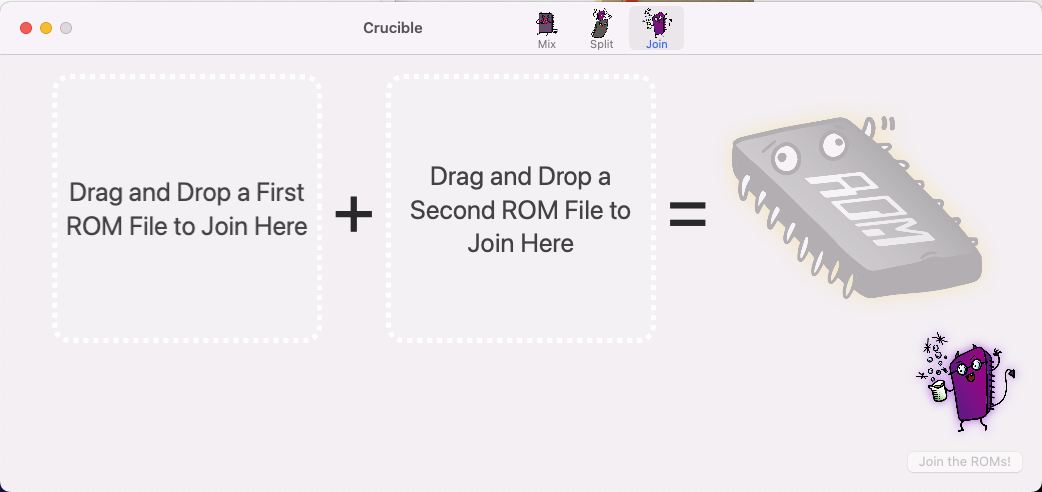
Join Mode allows you to concatenate ROMs into a single file. While still in beta, this feature shows promise and will likely see further improvements in the future.
Downloads
You can download the latest version of the Crucible App from:
https://x.gd/FcqIq
*This app works best on MacOS versions newer than Mac OS X High Sierra.